Part 1 — The command line
Terminal, paths, commands, pipes and wildcards
You need this part before your first practical. At the end of it, you can open a terminal, say where you are, move around, read a command and its parameters, and send the output of one command into another.
Work through it at a terminal, and type the commands as you go. It takes about an evening.
Each time this site is built, the bash blocks below run on a clean Linux machine. If a command is on this page, it ran without an error. Your machine can still have other versions or other defaults, but the example contains no typo.
Opening a terminal
A terminal (dt. Terminal) is a window that lets you type commands. The program that reads what you type and runs it is the shell (dt. Kommandozeile or Shell). On almost every computer you will use, the shell is bash, or zsh, which is very similar.
In particular, it targets Ubuntu, the Linux you are most likely to use. Everything here is written and tested on Ubuntu.
WSL2 on Windows is Linux, so it is covered too. macOS is similar but not the same. This page notes the differences where they are important, but it cannot cover a Mac completely.
Linux — search the applications menu for Terminal. On Ubuntu, Ctrl+Alt+T opens one directly. The rest of this page assumes Linux.
Windows — you need WSL2 (Windows Subsystem for Linux). It runs a real Ubuntu inside Windows. This is not a second-best solution: much scientific software is not available for Windows at all, so on Windows the answer is to run Linux. Open PowerShell as administrator and type:
wsl --installRestart the computer and wait until the setup is complete. Choose a username and a password. After that, start Ubuntu from the Start menu. Everything below then works for you as written, because you are now running Linux.
The WSL2 installation needs a restart and a download. Sometimes you must also switch on virtualisation in the BIOS. Solve this at home when you have time, not in the first ten minutes of a practical session.
macOS — Terminal is in Applications → Utilities. Spotlight (⌘+Space, then type “terminal”) is quicker. macOS is based on Unix, so all the concepts are the same and most commands work without change.
Linux comes with the GNU versions of the basic tools. macOS comes with the older BSD versions. They agree on the important things and differ in details. The most visible difference: BSD tools usually do not accept --help or long parameter names such as --lines. They accept only the short form, such as -n.
This page uses the form that works on both wherever it can. Outside this page, a Mac will sometimes not follow the instructions. The usual message is unrecognized option, and the usual fix is to use the short parameter. This material cannot cover every platform, and Linux is the one it covers.
No installation at all — if you only want to try the commands on this page first, webvm.io starts a real Debian Linux in a browser tab. You install nothing and need no account. It is enough for everything in Part 1.
It forgets everything when you close the tab, and you cannot install software in it. So from Part 2 on, you need one of the other ways above. Use it to start today, not as your working computer.
What you are looking at
You will see something like this.
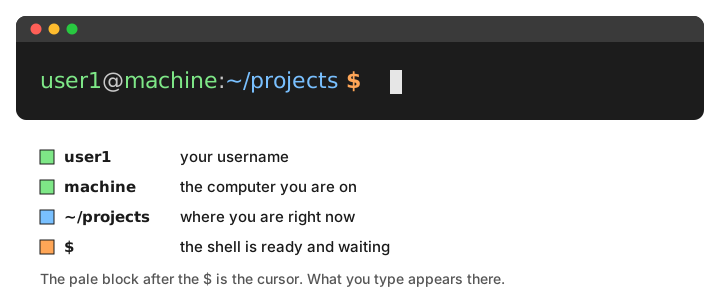
This is the prompt: it shows that the shell is ready. The most important part is where you are now. It changes as you move around. Beginners are most often confused about where they are, and the prompt answers this question.
The $ marks the end of the prompt. You never type it.
On this page, code blocks show the command without a prompt, so you can copy them cleanly. Where output is shown, it is in a separate block.
Ctrl+V will not paste here.
| paste into the terminal | Ctrl+Shift+V |
| copy from the terminal | Ctrl+Shift+C |
Here is the reason. In a terminal, Ctrl+C already means stop the command that is running (see Getting unstuck at the end of this page). This meaning is much older than copy and paste. If you press it to copy, you stop the command that you were waiting for.
On a Mac, the normal ⌘+C and ⌘+V work, so this problem does not occur.
Where am I?
Beginners are most often confused because they do not know where they are. The shell is always in one directory. Most commands work on that directory, unless you tell them otherwise.
pwd — print working directory — shows where you are:
pwd/home/userls — list — shows what is in the current directory:
lsIf nothing is printed, the directory is empty. This is a real answer, not an error. You will get used to this: most commands print nothing when they work. They print a message only when something goes wrong.
ls takes parameters that change what it shows:
ls -l
ls -a
ls -lh-l— long format: one file per line, with size, date and permissions.-a— all, including hidden files (those whose names start with a dot).-lh— long format with human-readable sizes (4.0Krather than4096).
The last one combines two parameters in one word. This is normal: -lh means the same as -l -h.
Reading ls -l output
A long listing shows six things on one line:
-rw-r--r-- 1 user1 staff 1048576 Sep 26 07:08 data.csv-rw-r--r-- |
who may read, write and run it. A leading d here means it is a directory. |
1 |
number of links — ignore it for now |
user1 |
the owner |
staff |
the owner’s group |
1048576 |
size in bytes (-h turns this into 1.0M) |
Sep 26 07:08 |
when it was last changed |
You do not need to read the permissions yet. But remember that this column exists: when you see Permission denied later, this column is the reason.
Data.csv, data.csv and DATA.CSV are three different files, and LS is not a command. Windows does not work this way, so this is a very common mistake. The error message (No such file or directory) does not mention upper and lower case. So it looks as if the file is missing, but the file is there.
The filesystem is one tree
Everything on the computer is inside a single directory called the root, written /. There are no drive letters — no C:, no D:. A USB stick, a second hard disk and a network drive all appear as directories somewhere inside this one tree.
This is the biggest difference from Windows. Look at the tree first, because paths only make sense with it.
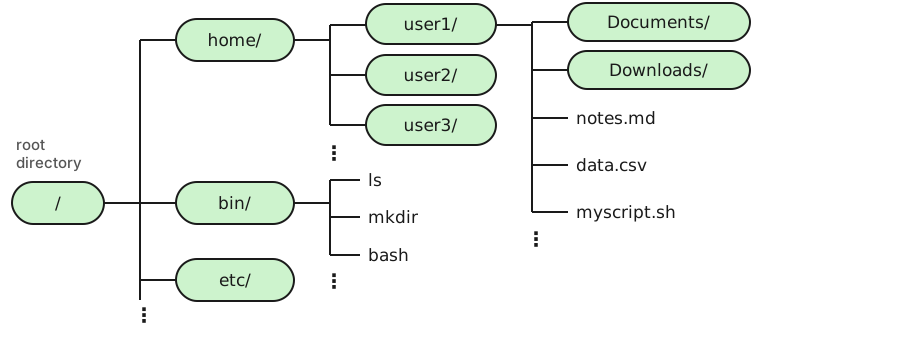
/ at its root. Directories branch; files are leaves. Your own files live under /home/<your name>/.
You will use two parts of this tree immediately:
/home/<your name>/— your own files. You start here, and almost all your work belongs here. Its short form is~./bin,/usr/bin— the programs.lsis a file on the disk, and it is here. So a command is a program in a directory. This is why “command not found” means that the shell cannot find a file.
Directories and paths
A path (dt. Pfad) is the address of a file or directory: a route through the tree. There are two kinds of path. The difference between them is the most important point in this section.
An absolute path starts at the root, /. So it means the same thing, no matter where you are. Compare it with Figure 2: it is the route from / down to the file:
/home/user1/data.csvA relative path starts from where you are now. If you are in /home/user1, the path to the same file is only:
data.csvThe relative path is shorter, and you will type it most of the time. It is also why pwd is important: the same relative path means different things, depending on where you are.
You will see three short forms all the time:
. |
the current directory |
.. |
the directory one level up |
~ |
your home directory |
So ~/projects is the projects folder in your home directory, wherever that is. And ../results is a results folder next to the one you are in.
Moving around
cd — change directory:
cd /tmp
pwd/tmpSome useful forms:
cd ~
cd ..
cd -
cd ~— go to your home directory.cdalone does the same.cd ..— go up one level.cd -— go back to the directory you were in before. This is often useful.
Type the first few letters of a name and press Tab. The shell completes the name. If nothing happens, press Tab twice to see the possible names.
This is more than a small help. It prevents almost all typos, and it shows you that the file or directory exists. People who use Tab find the terminal much easier than people who do not. Use it from your first day.
Making, copying and removing
First, make a place to work. These commands create a small directory tree. The rest of this page uses it.
mkdir -p practice/data
cd practice
lsdatamkdir makes a directory. The -p parameter means “also make the parent directories if necessary, and give no error if the directory already exists”. This is why one command can create both practice and practice/data.
echo prints its argument. On its own, this looks useless:
echo "hello"helloBut the next examples send this output into a file instead of to the screen. This is the fastest way to write text into a file without an editor. The section Redirection and pipes below explains how this works. For now, read echo "text" > file as “write text into file”.
Now create some files to practise with:
echo "alpha" > data/first.txt
echo "beta" > data/second.txt
ls data
first.txt
second.txtYou now have two real files to practise with. Type cat data/fi and press Tab. The shell completes it to data/first.txt. This is the Tab habit from above, used on a real file.
Copying, renaming and moving:
cp data/first.txt data/copy.txt
mv data/copy.txt data/renamed.txt
ls data
first.txt
renamed.txt
second.txtcp copies, and mv moves. To rename a file, you also use mv: you move it from one name to another name in the same directory. There is no separate command for renaming.
Deleting, and why it is different
rm data/renamed.txt
ls data
first.txt
second.txtrm does not move a file to a trash folder. It deletes the file. You cannot undo it, and no window asks whether you are sure.
Learn these three habits now:
lsfirst,rmsecond. Runlswith the same names that you want to delete. Iflsshows what you expect,rmdeletes what you expect.- Type the name with Tab, not from memory. If the shell completed a name, the file exists and the name is spelled correctly. A name typed from memory is a guess, and a typo in an
rmcommand can delete the wrong file. - Be very careful with
rm -r. It deletes a directory and everything inside it. Together with a wildcard or an extra space, it can delete a whole day’s work.
Commands and parameters
Almost every command has the same structure:
command -parameters arguments- the command — the program that you run.
- parameters, also called flags or options — they change how the program works.
- arguments — usually what the program should work on, for example a file name.
There are two styles of parameters, and most tools accept both:
| style | looks like | notes |
|---|---|---|
| short | -l, -h, -n 5 |
one letter; several can be combined as -lh |
| long | --long, --lines 5 |
two dashes, a whole word, easier to read later |
Short parameters work everywhere. Long parameters are a GNU convention, so they work on Linux but often not on macOS (see the note at the top of this page).
Some parameters need a value, and some do not:
head -n 1 data/first.txtalphaHere -n takes the value 1, and data/first.txt is the argument.
Spaces split arguments — so avoid them in names
This follows from what an argument is. The shell splits what you type at each space, before the command receives it. So the shell cannot tell a space inside a file name from a space between two arguments.
mkdir -p "lab notebook"
ls
lab notebookThis worked because of the quotes. Without the quotes:
cd lab notebookbash: cd: lab: No such file or directorycd receives two arguments, lab and notebook, not one. It looks for a directory with the name lab, which does not exist. Quotes fix this:
cd "lab notebook"
pwd
cd ..
But you must remember the quotes every time, in every command. The real fix is simpler: do not create files or folders with spaces in their names. Use lab_notebook or lab-notebook instead, and the problem never occurs.
This problem is real. It is the most common way in which a beginner’s own files cause errors in the terminal. Graphical file managers and Windows allow spaces in names, so beginners meet the problem for the first time in the terminal.
Tab completion also protects you here. If you complete a name that contains a space, the shell adds the quotes or the escape characters for you. This is one more reason to use Tab, even when you think you remember the name.
A realistic invocation
A real command usually has more than one parameter. Here is an example with sort, an ordinary tool. The command sorts a table by its second column, as numbers, with the largest number first.
printf "alpha,12\nbeta,7\ngamma,103\n" > scores.csv
sort -t, -k2 -n -r scores.csv
gamma,103
alpha,12
beta,7There are four parameters, and each one does one thing:
-t, |
the columns are separated by commas |
-k2 |
sort on column 2 |
-n |
compare as numbers, not text |
-r |
reverse, so largest first |
Without -n, 103 comes before 12, because as text it starts with a 1 followed by a 0. This is not a bug. The command did what you asked for, not what you meant. Parameters exist to make this difference clear.
Scientific tools often have more parameters, and they often mix the two styles:
some_tool --input data/ --output results/ -t 4 --verboseYou can read this command without knowing the tool. --input and --output say where the data comes from and where the results go. -t 4 almost always means “use 4 threads”. --verbose tells the tool to print more information about what it does. Read an unknown command by its parameters. The structure is almost always the same, whatever the tool does.
On Linux, -n 1 and --lines 1 do the same thing. Short parameters are quicker to type. Long parameters are much easier to read six months later, and in the methods section of a report they explain themselves. So type the short form at the terminal, and use the long form in anything you save. But remember that a script with long parameters does not run on a Mac.
Long commands and the backslash
Real commands can be so long that they are written on several lines. A backslash at the end of a line means “this command continues on the next line”:
head \
  -n 1 \
data/second.txtbetaThis is the same command as head -n 1 data/second.txt. The backslashes are only there to make it easier for people to read.
Not a space, not a comment: the backslash must be the very last character. If there is a space after the backslash, the command does not continue. The error message then points to the next line, which is confusing.
This small detail is important. In a typical practical, almost a quarter of the commands are written on several lines in this way. A student who cannot read the backslash cannot copy most of the session correctly.
Finding out what a command does
Try these three things, in this order:
head --helpOn Linux, most commands accept --help and print a short summary. This is the fastest answer, and it is usually enough. On macOS, the basic tools are the BSD versions, and most of them do not accept --help. On a Mac, use man directly.
man headman — manual — opens the full documentation in a pager. Scroll with the arrow keys or Space, search by typing /word, and quit with q. Many beginners get stuck here because they do not know that q quits.
Many tools print a short usage text if you run them without arguments. A few tools wait for input instead. Then Ctrl+C stops them.
Looking at files
You rarely want to print a whole file. These four commands cover almost every case:
cat data/first.txtalphacat prints the whole file. This is fine for a short file, but a mistake for a large one: printing a million lines takes time and tells you nothing.
head -n 2 data/first.txt
tail -n 1 data/second.txt
alpha
betahead shows the first lines, and tail the last lines. Both show 10 lines if you do not say otherwise.
wc -l data/first.txt1 data/first.txtwc counts words (word count), and -l makes it count lines instead. Counting lines is by far the most common use.
To read a large file page by page, use less. It opens the file in the same pager that man uses:
less data/first.txtThe keys are the same: arrows and Space to move, /word to search, q to quit.
Editing files: use VS Code
Sooner or later you need to change a file, not only look at it. There are editors that run in the terminal: nano is the easy one, and vim is the difficult one. You will meet them some day, especially on a server where no other editor is available.
For everything else, use Visual Studio Code. This is a strong recommendation, for these reasons:
- It edits files and gives you a terminal in the same window. You do not have to switch between the file and the command that reads it.
- It knows the formats you will use — Markdown, JSON, CSV, YAML, Python. Its syntax highlighting shows you when a file contains an error.
- With its WSL extension, Windows users can edit Linux files directly, without copying them. On Windows, this is almost necessary.
- It is free, and many people in the field use it, so it is easy to find help.
A word processor adds formatting, curly quotes and its own line endings, and it does not tell you. The file looks correct on the screen, but programs cannot read it, and the error message does not say why. Use a text editor for text files.
Redirection and pipes
This section is the main reason to learn the command line. Graphical programs have nothing like it.
Three streams, not one
Every command has three channels. If you know them, several things that look like bugs make sense:
| stream | ||
|---|---|---|
| stdin | standard input | what goes in — usually what you type, or another command’s output |
| stdout | standard output | the actual result |
| stderr | standard error | warnings and error messages |
The important consequence: > and | move only stdout. Errors and warnings still go to the screen. So if you send the output of a command to a file and still see red text, nothing is broken: the red text is stderr. This is intended. It means that an error message never ends up inside your results file without you seeing it.
Sending output to a file
Normally a command prints its result on the screen. > sends the result to a file instead:
head -n 1 data/first.txt > result.txt
cat result.txtalpha> overwrites the file without a warning. >> adds to the end of the file instead. This is how people empty a file by accident.
echo "second line" >> result.txt
cat result.txt
alpha
second lineSending output to another command
| — the pipe (dt. Pipe or Rohr) — takes the output of one command and gives it to the next command as input. No file is written.
First, create a file to filter:
printf "banana\napple\ncherry\napple\n" > fruit.txt
cat fruit.txt
banana
apple
cherry
appleNow connect several commands:
sort fruit.txt | uniq -c | sort -rn 2 apple
1 cherry
1 bananaRead it from left to right: sort the lines, then count how often each line occurs, then sort this result as numbers (-n) in reverse order (-r). uniq -c needs sorted input, and this is why sort comes first.
grep finds the lines that match a pattern. It is probably the most useful command on this page:
grep "an" fruit.txtbananaNow combine the two ideas: filter, then save:
grep "ap" fruit.txt | sort > apples.txt
cat apples.txt
apple
appleEach of these commands does one small thing, and none of them knows about the others. With the pipe, a few simple tools can answer a question that no single program was written for.
When you see a long command in a practical, read it as a sentence, with | between the parts. It almost always says: take this, keep the interesting part, count it, sort it.
Wildcards
With a wildcard (dt. Platzhalter), one name can refer to many files. The shell replaces the wildcard with the matching file names before the command runs. So the command itself never sees the *.
ls data/*.txtdata/first.txt
data/second.txt* |
any number of characters, including none |
? |
exactly one character |
[abc] |
any one of the listed characters |
ls data/?econd.txtdata/second.txtThe most common use is to run one command on a whole set of files:
wc -l data/*.txt1 data/first.txt
1 data/second.txt
2 totalls before using it with anything destructive
ls and rm expand * in the same way. So ls shows you which files rm would delete, without any risk. This is the same habit as above, and this is why we repeat it here.
Variables, briefly
You will read variables before you write any: in other people’s instructions, or in the output of an installer. This section explains enough to recognise them:
FOOBAR="hello world"
echo $FOOBAR
hello worldTo set a variable, write NAME=value, with no spaces around the =. FOOBAR = "hi" does not set a variable: the shell tries to run a command called FOOBAR, which almost certainly does not exist. To read the value of a variable, put a $ in front of its name: $FOOBAR, not FOOBAR.
You have already used two variables without knowing their names. $HOME is your home directory (~ is its short form). $PATH is the list of directories in which the shell looks for the program file of a command. This is why “command not found” is a real error: the shell looked in every directory on this list and did not find the program. Both variables are already set, so you do not need to define them.
echo $HOMEThis is all that this page covers about variables. Writing your own scripts with variables, loops and conditions is programming, and it belongs in a programming course.
Getting unstuck
This short list will save you more time than anything else on this page.
| situation | what to do |
|---|---|
| A command is running and you want it to stop | Ctrl+C |
You are stuck in a pager (man, less) |
q |
| The prompt has vanished and nothing responds | Ctrl+C, then Ctrl+D |
| You want the command you ran a minute ago | ↑ arrow, repeatedly |
| You want one you ran yesterday | history, or Ctrl+R and start typing |
| The screen is a mess | clear |
| You typed a long command and want to fix the start | Ctrl+A jumps to the beginning |
| You are not sure a name is spelled right | Do not guess — press Tab |
| You pressed Ctrl+C to copy, and the command stopped | That is what it means here. Copy is Ctrl+Shift+C, paste Ctrl+Shift+V |
Reading an error message
Error messages look unfriendly, but they usually say something simple. These are the three you will meet first:
bash: sortt: command not foundThe shell cannot find this program. Usually this is a typo. Sometimes the tool is not installed yet: Part 2 explains how to install tools.
ls: cannot access 'dta': No such file or directoryThe path is wrong. Run pwd, then ls to see what is really there. Almost always, you are not in the directory that you think you are in.
bash: result.txt: Permission deniedYou do not have the permission to do this here. This often happens when you are outside your home directory.
If a command fails and prints twenty lines, the useful line is usually the last one or the first one, rarely one in the middle. Also, a command that prints a warning has not necessarily failed. Warnings and errors are different, and many tools print warnings every time they run.
What you should be able to do now
Check yourself against this list. If you can do everything on it, you are ready for a first practical.
Nothing in this list asks you to memorise commands. Everybody looks commands up, all the time. What matters is that you know what is possible, and what to search for.
Where to go next
Part 2 — Installing and managing tools shows how to install the tools that a practical needs, and how to stop the tools of one project from breaking the tools of another.
Part 3 — Git and GitHub shows how to save your work, share it, and get it back after you break something.
Part 4 — Files you will meet covers Markdown, JSON and tables, and the two invisible things that cause errors in text files.